
Build a resume.
For your next role.
Choose an ATS-friendly template, add your real experience, and download a clean PDF. Start fresh, upload a resume, or use your saved details.
My resumes
Why an ATS-friendly resume matters.
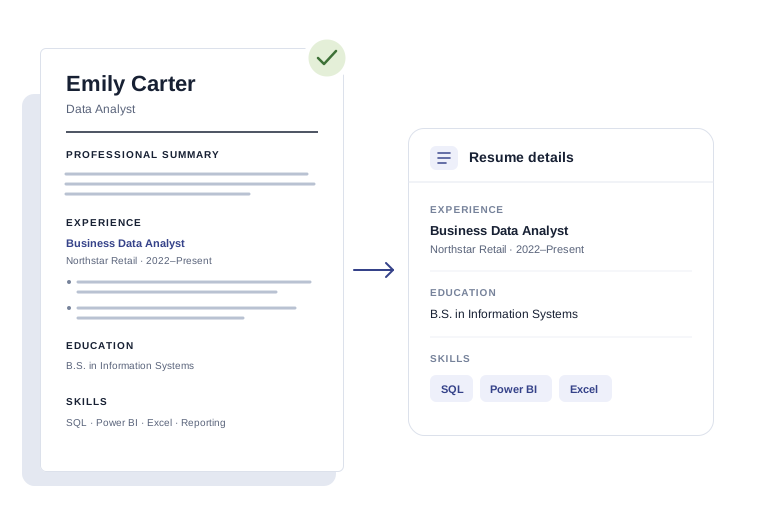
ATS stands for applicant tracking system. Employers use these systems to organize applications and resume details. Clear formatting helps your experience stay readable when your document is processed.
One column, a clear reading order.
Keep each role, date, and achievement together in a familiar layout.
Standard headings. Selectable text.
Give Experience, Education, and Skills their own sections in a text-based PDF.
Relevant skills, backed by your work.
Use the job’s language where it fits your experience. Keep every claim accurate.
Six ATS-friendly templates.
Make one your own.
Start with a single-column layout, standard headings, and a PDF with selectable text. Changing templates keeps your content and section order.
Classic
Centered header · fine section lines
Modern
Soft header band · open sections
Compact
More room for experience · compact spacing
Formal
Right-aligned header · understated rules
Minimal
Simple headings · no dividing lines
Structured
Shaded headings · clearly defined sections
More control over every detail.
Write, arrange, and refine in one place. You bring the experience; the builder keeps the page organized.
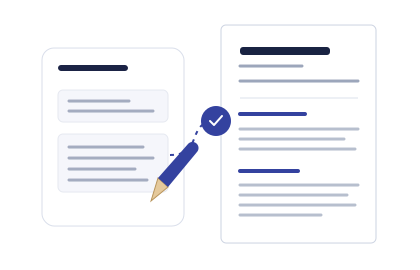
Write in sections. See the whole page.
Give your summary, achievements, and skills their own space. Follow your edits in the live preview, with Undo and Redo while you work.
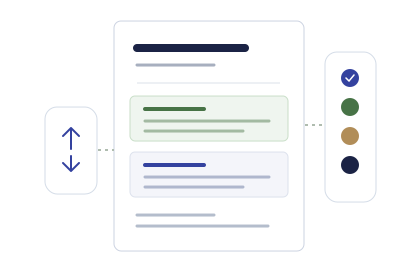
Let the strongest sections lead.
Move projects or education higher when they matter most. Adjust typography and spacing, and hide sections you don’t need.
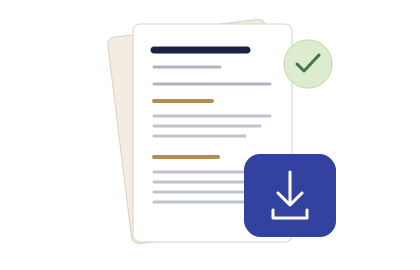
Take the finished document with you.
Check every page before exporting a PDF with selectable text. Your latest draft stays in your account for the next application.

From a first draft to
ready to send.
Work through your resume one section at a time, with the finished page always in view.
Start with what you have.
Open a blank resume, bring in your PDF, or copy details already saved in your account.
Make each section yours.
Add your experience, projects, education, and skills. Choose what to include and move the strongest sections up.
Check the page. Download your PDF.
See your changes in the live preview, review the wording, and download the finished document.
A different role.
A more focused resume.
Keep your main resume, then create a separate copy for an opportunity. Bring the relevant skills and achievements forward without starting over.
- Keep the original and the tailored copy separate
- Add the job description for context
- Pair your resume with a matching cover letter
Put the right evidence on the page.
A thoughtful resume makes your work easier to understand. Start with details you can explain, then give them a clear structure.
“Automated weekly reporting, reducing preparation time by 30%.”
Give your summary a clear direction.
Connect your background to the kind of work you want next. Keep the opening specific to your experience.
Show what changed because of your work.
Describe the task, your contribution, and the result. Add a number only when you can support it.
Give relevant projects their place.
Projects, certifications, and education can add context, especially when you’re early in your career or moving into a new field.
Finish with a careful read.
Check names, contact details, dates, links, and page breaks. Download the PDF and read it once more before sending.
Before you start.
A few helpful answers about building, editing, and saving your resume.
Explore the career guidesWhat does ATS stand for?
ATS means applicant tracking system. Employers use these systems to organize applications and resume information. An ATS-friendly resume uses clear formatting so its details are easier to read and process.
Do I need an account to build a resume?
Yes. You can explore this page without signing in. Creating, importing, editing, and saving a resume requires a verified account, so your work stays connected to you.
Can I bring my existing resume?
Yes. Upload a PDF up to 5 MB. The builder reads its details into editable sections. Review the details we find, especially names, dates, and achievements, before downloading your new resume.
What makes these layouts ATS-friendly?
The templates use a single column, familiar section headings, and selectable text in the exported PDF. These choices keep the document straightforward to read. Every employer’s system is different, so no layout can guarantee a match or an interview.
Can I change templates after I start?
Yes. Switch between six templates and adjust the font, spacing, margins, and color. Your writing stays intact. You can also choose Letter or A4 paper and rearrange or hide sections.
Can I keep a different resume for each role?
Yes. Duplicate your resume or use Tailor for a job to create a separate copy. Add the target role and job description, then choose the experience that fits. Your original resume stays separate.
How is my resume saved?
Your latest changes save automatically to your account. Find your saved work in My resumes when you return. Undo and Redo help during editing; download a PDF whenever you want to keep a separate finished copy.
Does the downloaded PDF contain real text?
Yes. The exported PDF contains selectable text. Use Text view to review your wording and the live preview to check page breaks. Follow the employer’s instructions if the application asks for a different file format.